Open a text file in notepad and write:
copy from here//:-
Code:
Dim msg, sapi
msg=InputBox("Enter your text","Talk it")
Set sapi=CreateObject("sapi.spvoice")
sapi.Speak msg
//Save the file with a (*.vbs) extension, it will create a VBScript File.
Then after clicking the .vbs file, it will prompt you for a text, input the text and press ok.
i hope Enjoy..
Monday, November 22, 2010

Lock Your Computer on Mouse Click!
Instead of pressing CTRL+ALT+DEL or windows + L to lock your machine you can create an icon to lock your machine. There are very simple steps by using it you can simply lock your computer using single mouse click.
Just Follow the simple step >>
1. Right click an empty spot on the desktop, point to New and click Shortcut.
2. In the Create Shortcut dialog box, type the following in the 'Type the location' of the item text box:
rundll32 user32.dll,LockWorkStation
3. Click Next
4. In "Type a name for this shortcut", type "" (any name as u wish) and Click Finish
5. This will Create a shortcut in your Desktop.
6.Now each time when you want to lock the computer , Just click on this shortcut.
Just Follow the simple step >>
1. Right click an empty spot on the desktop, point to New and click Shortcut.
2. In the Create Shortcut dialog box, type the following in the 'Type the location' of the item text box:
rundll32 user32.dll,LockWorkStation
3. Click Next
4. In "Type a name for this shortcut", type "" (any name as u wish) and Click Finish
5. This will Create a shortcut in your Desktop.
6.Now each time when you want to lock the computer , Just click on this shortcut.
Play with Mozilla Firefox
chrome://global/content/alerts/alert.xul
shows Dancing Firefox.
chrome://browser/content/browser.xul
Opens another Firefox inside a tab in the the existing Firefox window.
chrome://browser/content/preferences/preferences.xul
Opens the Options dialog box inside the Firefox tab.
chrome://browser/content/bookmarks/bookmarksPanel.xul
Opens the “Book Marks Manager” inside a tab in the Firefox window.
chrome://browser/content/history/history-panel.xul
Opens the History Panel in the Firefox tab.
chrome://mozapps/content/extensions/extensions.xul?type=extensions
Opens the Extensions window in the current tab.
chrome://browser/content/preferences/cookies.xul
Opens the “cookies window” inside a tab in the Firefox window.
chrome://browser/content/preferences/sanitize.xul
Opens the “Clear Private Data” window inside the current tab.
chrome://browser/content/aboutDialog.xul
shows Dancing Firefox.
chrome://browser/content/browser.xul
Opens another Firefox inside a tab in the the existing Firefox window.
chrome://browser/content/preferences/preferences.xul
Opens the Options dialog box inside the Firefox tab.
chrome://browser/content/bookmarks/bookmarksPanel.xul
Opens the “Book Marks Manager” inside a tab in the Firefox window.
chrome://browser/content/history/history-panel.xul
Opens the History Panel in the Firefox tab.
chrome://mozapps/content/extensions/extensions.xul?type=extensions
Opens the Extensions window in the current tab.
chrome://browser/content/preferences/cookies.xul
Opens the “cookies window” inside a tab in the Firefox window.
chrome://browser/content/preferences/sanitize.xul
Opens the “Clear Private Data” window inside the current tab.
chrome://browser/content/aboutDialog.xul
Opens the “About Firefox” Dialog box inside the tab.
chrome://browser/content/credits.xhtml
A scrolling list of names. The one’s who we must thank for creating Firefox
copy & paste these codes in ur address bar & see the magic
chrome://browser/content/credits.xhtml
A scrolling list of names. The one’s who we must thank for creating Firefox
copy & paste these codes in ur address bar & see the magic
Remove Data Error (CYCLIC REDUNDANCY CHECK)
What is Data Error(Cyclic redundancy check)?
Ans)CRC is cyclic redundancy check error which mainly occurs while copying,moving files from a DVD or CD to your local hard disk that is scratched or old or a process on windows was running and then it got cut off or stopped,this can happen when there is a powerfailure or anything that makes the PC suddenly freeze or turn off, after any of this happens you should always run a Check Disk which can be done by selecting run on the start menu and typing in chkdsk and it will do the rest.
How to Know that Your DVD or CD is damaged?
Ans) Goto start>>RUN>>Type chkdsk command>>now you must not get any errors in command prompt while checking
What to do To remove SCRATCHES from ur DVD/CD or Remove DATA ERROR(Cyclic redundancy check)>
Ans)Just Check the back side of Disc and it may contain scratches or tiny spots.You can remove them by pouring few water drops on exact location and wiping with ur banian or any cotton cloth from botton to up (which prevents from destroying ur data)
If the marks or scratches still exist you can download cleaner softwares readily available....that's it...now after the disc is clean you will never get such CRC error.
Ans)CRC is cyclic redundancy check error which mainly occurs while copying,moving files from a DVD or CD to your local hard disk that is scratched or old or a process on windows was running and then it got cut off or stopped,this can happen when there is a powerfailure or anything that makes the PC suddenly freeze or turn off, after any of this happens you should always run a Check Disk which can be done by selecting run on the start menu and typing in chkdsk and it will do the rest.
How to Know that Your DVD or CD is damaged?
Ans) Goto start>>RUN>>Type chkdsk command>>now you must not get any errors in command prompt while checking
What to do To remove SCRATCHES from ur DVD/CD or Remove DATA ERROR(Cyclic redundancy check)>
Ans)Just Check the back side of Disc and it may contain scratches or tiny spots.You can remove them by pouring few water drops on exact location and wiping with ur banian or any cotton cloth from botton to up (which prevents from destroying ur data)
If the marks or scratches still exist you can download cleaner softwares readily available....that's it...now after the disc is clean you will never get such CRC error.
Create "New Folder" through Keyboard in Windows 7
After so long time, at last Microsoft introduced this shortcut in its latest Windows Built, Windows 7 has included a keyboard shortcut to create a new folder, by pressing CTRL+SHIFT+N keys from keyboard , it quickly creates New Folder and you can rename it as you want.
Tips To keep Your Computer Virus-Free Without AntiVirus Software
*****
Most of the time many AntiVirus software slow down your window performance... and they are not necessarily 100% guaranteed that you system is secured from virus and hackers...
Some Anitivirus out there claim that they take less space , good in real -time protection ,provide superb virus protection ,easy graphic interface allow user to guide,and will improve you PC performance...
well these are all nonsense.
much application running in background makes PC performance slower...and still u can get the virus

here are some tips to safe your computer from virus ...
1:turn you firewall ON.....
2:Having latest version of web Browser automatically helps block unsafe websites and will warn you about suspicious downloads.
3:Having newer operating system enabling windows updates protect you from virus..
4:beside of all these above always scan all incoming email attachments , software before installing it in you pc... as free scan facility available online ...
5:use scandisk chkdisk utility once a month atleast...
Note : many free downloads of Antivirus software are not the latest version they may not be as effective as they are supposed to be.
******
Most of the time many AntiVirus software slow down your window performance... and they are not necessarily 100% guaranteed that you system is secured from virus and hackers...
Some Anitivirus out there claim that they take less space , good in real -time protection ,provide superb virus protection ,easy graphic interface allow user to guide,and will improve you PC performance...
well these are all nonsense.
much application running in background makes PC performance slower...and still u can get the virus
here are some tips to safe your computer from virus ...
1:turn you firewall ON.....
2:Having latest version of web Browser automatically helps block unsafe websites and will warn you about suspicious downloads.
3:Having newer operating system enabling windows updates protect you from virus..
4:beside of all these above always scan all incoming email attachments , software before installing it in you pc... as free scan facility available online ...
5:use scandisk chkdisk utility once a month atleast...
Note : many free downloads of Antivirus software are not the latest version they may not be as effective as they are supposed to be.
******
Safety Tips For Using Wi-Fi
*****
If you have a laptop computer with wireless connectivity, you can access the Internet using Wi-Fi, or wireless networks, often in public places such as coffee shops, airports, hotels, and other spaces.
Here are four quick tips to enjoy the convenience of public Wi-Fi and help to protect your privacy.
1. Use a firewall
If your computer uses Windows Vista or Windows XP and you've installed Service Pack 2, you have a built-in firewall that's turned on by default.
You can configure Windows Firewall to provide better protection when you're using a public wireless network.
For more information, see Windows Firewall.
2. Hide your files
When you use public Wi-Fi, network encryption is often out of your control.
Check the privacy statement on the network's Web site to learn about the type of encryption they use. (If they don't have a privacy statement, you'd be better off not using the network.)
If you keep personal or financial information on your computer, consider investing in an operating system, such as Windows Vista, that includes the tools to protect your information through encryption.
To learn more, see Encrypt or decrypt a folder or file.
3. Don't type in credit card numbers or passwords
These measures provide some protection against casual hackers and identity thieves who prey on wireless networks. But if criminals are determined enough, they will eventually find a way to get around any security system.
If you want to be safe, avoid typing any sensitive information, such as your credit card number or any other financial information, while you use a public wireless network.
Tip: If you must enter credit card numbers while using a public wireless network, make sure there is a locked padlock icon at the bottom right corner of the browser window, and make sure the Web address begins with https: (the "s" stands for secure).
4. Turn off your wireless network when you're not using it
If you're not surfing the Internet or sending e-mail, but still using your computer in an area where there is a public wireless network, disable your wireless connection.
If you're using an external Wi-Fi card you can remove it.
If you're using an internal WiFi card, right-click the connection and click Disable
*****
If you have a laptop computer with wireless connectivity, you can access the Internet using Wi-Fi, or wireless networks, often in public places such as coffee shops, airports, hotels, and other spaces.
Here are four quick tips to enjoy the convenience of public Wi-Fi and help to protect your privacy.
1. Use a firewall
If your computer uses Windows Vista or Windows XP and you've installed Service Pack 2, you have a built-in firewall that's turned on by default.
You can configure Windows Firewall to provide better protection when you're using a public wireless network.
For more information, see Windows Firewall.
2. Hide your files
When you use public Wi-Fi, network encryption is often out of your control.
Check the privacy statement on the network's Web site to learn about the type of encryption they use. (If they don't have a privacy statement, you'd be better off not using the network.)
If you keep personal or financial information on your computer, consider investing in an operating system, such as Windows Vista, that includes the tools to protect your information through encryption.
To learn more, see Encrypt or decrypt a folder or file.
3. Don't type in credit card numbers or passwords
These measures provide some protection against casual hackers and identity thieves who prey on wireless networks. But if criminals are determined enough, they will eventually find a way to get around any security system.
If you want to be safe, avoid typing any sensitive information, such as your credit card number or any other financial information, while you use a public wireless network.
Tip: If you must enter credit card numbers while using a public wireless network, make sure there is a locked padlock icon at the bottom right corner of the browser window, and make sure the Web address begins with https: (the "s" stands for secure).
4. Turn off your wireless network when you're not using it
If you're not surfing the Internet or sending e-mail, but still using your computer in an area where there is a public wireless network, disable your wireless connection.
If you're using an external Wi-Fi card you can remove it.
If you're using an internal WiFi card, right-click the connection and click Disable
*****
How to check original install date of windows
Some of our friends and people are fond of installing Windows after regular intervals of months or two months. fot hose, if they forget that when did they install Windows, this method is pretty useful. Now follow steps..
Step#1:
Go to Start>Run and type "cmd" (with quotes) and hit Enter. Command Prompt windows appeard on your screen. Like this:

Step#2:
Now type this command:
and hit Enter.
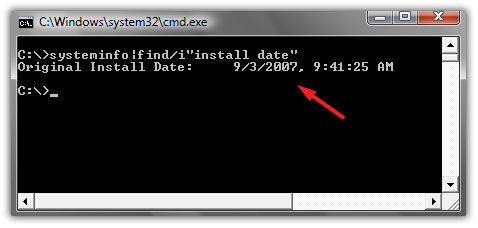
Step#1:
Go to Start>Run and type "cmd" (with quotes) and hit Enter. Command Prompt windows appeard on your screen. Like this:
Step#2:
Now type this command:
Code:
systeminfo|find/i"install date"
Windows, Mac, or Linux: It's Not the OS, It's the User
******
Who's got the safest operating system? Apple, Google, Microsoft? According to one security expert, what really matters is who's using the OS.
"Microsoft doesn't have a monopoly on all the technical vulnerabilities that are out there," Zulfikar Ramzan, technical director of Symantec Security Response, said Tuesday in a phone interview with PCWorld.
Today's online criminals are far more likely to target user behavior rather than a technical flaw in the OS. "It's a lot easier to do that," said Zulfikar. "You don't need as many technical skills to find one person who might be willing, in a moment of weakness, to open up an attachment that contains malicious content."
This trend has been rising rapidly over the past two years. Currently, only about 3 percent of the malicious software that Symantec encounters exploits a technical vulnerability. The other 97 percent of malware is either "piggybacking on that 3 percent," or more likely trying to trick a user through some type of "social engineering" scheme, according to Zulfikar.
Tricking the User
In other words, most attackers now target human, not technical, vulnerabilities. The key is to trick someone, usually via psychological manipulation, into compromising their own security by installing malware, for instance.
One such attack is when an organization's chief financial officer (CFO) receives an email claiming to be from the IRS. "It says you haven't paid your taxes, and if don't open up this attachment and fill out this form, we're going to fine you," Zulfiker said.
A similar scheme involves a bogus inquiry from the "Better Business Bureau." The attacker(s), claiming to be the BBB, email a company's CEO and say they've opened a complaint file against the firm. The email then instructs the CEO to open the attachment to find out more about the complaint.
Of course, in each case, the attachment propagates malicious software onto the recipient's system.
So what's a business to do? First, treat any inbound inquiry with a healthy degree of skepticism. "That should apply through all forms of communication--not just email, but even phone calls and things of that nature," said Zulfiker. And make sure that all of your employees are aware of these risks. "It's important to educate people, even on the front lines, to be careful what you divulge to the outside world about the company," he added.
Microsoft: Still the Biggest Target
No computer or operating system is 100-percent secure, of course, and different types of systems are vulnerable to different exploits.
"Microsoft, being the biggest company in the software space, has attracted the most attention," Zulfiker said. "People have tried to attack Microsoft's products because of the (huge) market share. If I'm an attacker, and I want to make the most profit from my attacks, I'm better off going for the company with the most machines out there. That tends to be Microsoft."
And if Google's upcoming Chrome OS takes off in the business and consumer market, it'll have a big target on its back too.
Who's got the safest operating system? Apple, Google, Microsoft? According to one security expert, what really matters is who's using the OS.
"Microsoft doesn't have a monopoly on all the technical vulnerabilities that are out there," Zulfikar Ramzan, technical director of Symantec Security Response, said Tuesday in a phone interview with PCWorld.
Today's online criminals are far more likely to target user behavior rather than a technical flaw in the OS. "It's a lot easier to do that," said Zulfikar. "You don't need as many technical skills to find one person who might be willing, in a moment of weakness, to open up an attachment that contains malicious content."
This trend has been rising rapidly over the past two years. Currently, only about 3 percent of the malicious software that Symantec encounters exploits a technical vulnerability. The other 97 percent of malware is either "piggybacking on that 3 percent," or more likely trying to trick a user through some type of "social engineering" scheme, according to Zulfikar.
Tricking the User
In other words, most attackers now target human, not technical, vulnerabilities. The key is to trick someone, usually via psychological manipulation, into compromising their own security by installing malware, for instance.
One such attack is when an organization's chief financial officer (CFO) receives an email claiming to be from the IRS. "It says you haven't paid your taxes, and if don't open up this attachment and fill out this form, we're going to fine you," Zulfiker said.
A similar scheme involves a bogus inquiry from the "Better Business Bureau." The attacker(s), claiming to be the BBB, email a company's CEO and say they've opened a complaint file against the firm. The email then instructs the CEO to open the attachment to find out more about the complaint.
Of course, in each case, the attachment propagates malicious software onto the recipient's system.
So what's a business to do? First, treat any inbound inquiry with a healthy degree of skepticism. "That should apply through all forms of communication--not just email, but even phone calls and things of that nature," said Zulfiker. And make sure that all of your employees are aware of these risks. "It's important to educate people, even on the front lines, to be careful what you divulge to the outside world about the company," he added.
Microsoft: Still the Biggest Target
No computer or operating system is 100-percent secure, of course, and different types of systems are vulnerable to different exploits.
"Microsoft, being the biggest company in the software space, has attracted the most attention," Zulfiker said. "People have tried to attack Microsoft's products because of the (huge) market share. If I'm an attacker, and I want to make the most profit from my attacks, I'm better off going for the company with the most machines out there. That tends to be Microsoft."
And if Google's upcoming Chrome OS takes off in the business and consumer market, it'll have a big target on its back too.
Symptoms of a Hacked Computer
If your computer experiences any of the following symptoms below, you may be infected with an Internet Trojan and hackers may have the ability to invade your computer.
* Computer suddenly starts running slow.
* Settings were changed without your knowledge. Your web browser home page or file information.
* Suddenly slow internet access.
* Additional internet activity detected without you using any programs accessing the internet.
* Abnormal running files/processes in the task manager.
There are several free utilities that users can utilize to check their computer for evidence of being hacked. These utilities look for unusual activity such as the utilization of your TCP and UDP Ports. TCP and UDP ports explained here. A TCP or UDP port is used by programs for transfer of information to other computers on the internet. Below is a list of utilities you can use for basic investigative checks on your computer to tell if you were hacked.
List of free utilities:
PSTools – This is a utility that gives you a list of command lines that can kill/quit processes running on your computer. To completely remove a virus or hacker file you may need command line functions to end a running process of the malicious file.
Fport – This is a utility program that runs from the command line. When it is run it monitors the TCP and UDP ports telling you which program is using which port.
TCPView – This utility also listens to the TCP and UDP port activity. It has a graphical user interface (GUI) for easy use. This utility is similar to Fport but with a better front end interface for use.
File Analyzer – This is a tool that allows you to view additional information about any given file. When you do a right-click-properties of a file you can view detailed information of the given file. This arms a user with the ability to better identify a suspicious file type.
Windows boot disk creator – You can create boot disks from the following website: http://www.bootdisk.com/bootdisk.htm. This allows you to boot from a separate disk for removing any corrupted or hacker files on your computer system without them loading into your system during a boot process.
Now that you are armed with all of these wonderful tools. What do you do now?
As a general rule to finding out of your computer is hacked you must know how your computer usually behaves under normal circumstances. This means if it takes a commonly used application an additional 2 minutes to open then you might have a problem. It is always a good practice to familiarize yourself with the list of normal running processes/programs on your computer. You can do this by right-click the taskbar and go to Task Manager and the Processes Tab.
task-manager-select
windows-task-manager
To get a little deep into detecting if your computer has been hacked you can check for the TCP and UDP port activity for any given program. You can use the Fport or TCPView program for this. Since hackers leave files behind to initially hack your system you can run Fport or TCPView to see which program or files are accessing the ports. If you locate the suspicious file and find that it is accessing a TCP or UDP port then it means the file is transferring information to another source. The source is usually the hacker on the other end collecting your personal information in some cases. You must use a boot disk and remove the corrupted file.
If you are trying to locate a file that Fport or TCPView found and you cannot find it in on your hard drive then it may be a hidden file.
To display/show hidden files you must change the setting in your Folder Options. Open up My Computer > Tools menu > Folder Options > View tab > uncheck the box “Hide extensions for known file types” and make sure the bullet for “Show hidden files and folders” is selected. Click OK.
If all else fails with removing hacker files or fixing your computer from being hacked you can format your hard drive and reinstall the operating system as a last resort. We do not recommend you doing as you will lose ALL of your information. In the end it is your call and it is always worth a try to remove the malicious files first.
How Do I Know If I Have Been Hacked? Automatic Removal Instructions

* Computer suddenly starts running slow.
* Settings were changed without your knowledge. Your web browser home page or file information.
* Suddenly slow internet access.
* Additional internet activity detected without you using any programs accessing the internet.
* Abnormal running files/processes in the task manager.
There are several free utilities that users can utilize to check their computer for evidence of being hacked. These utilities look for unusual activity such as the utilization of your TCP and UDP Ports. TCP and UDP ports explained here. A TCP or UDP port is used by programs for transfer of information to other computers on the internet. Below is a list of utilities you can use for basic investigative checks on your computer to tell if you were hacked.
List of free utilities:
PSTools – This is a utility that gives you a list of command lines that can kill/quit processes running on your computer. To completely remove a virus or hacker file you may need command line functions to end a running process of the malicious file.
Fport – This is a utility program that runs from the command line. When it is run it monitors the TCP and UDP ports telling you which program is using which port.
TCPView – This utility also listens to the TCP and UDP port activity. It has a graphical user interface (GUI) for easy use. This utility is similar to Fport but with a better front end interface for use.
File Analyzer – This is a tool that allows you to view additional information about any given file. When you do a right-click-properties of a file you can view detailed information of the given file. This arms a user with the ability to better identify a suspicious file type.
Windows boot disk creator – You can create boot disks from the following website: http://www.bootdisk.com/bootdisk.htm. This allows you to boot from a separate disk for removing any corrupted or hacker files on your computer system without them loading into your system during a boot process.
Now that you are armed with all of these wonderful tools. What do you do now?
As a general rule to finding out of your computer is hacked you must know how your computer usually behaves under normal circumstances. This means if it takes a commonly used application an additional 2 minutes to open then you might have a problem. It is always a good practice to familiarize yourself with the list of normal running processes/programs on your computer. You can do this by right-click the taskbar and go to Task Manager and the Processes Tab.
task-manager-select
windows-task-manager
To get a little deep into detecting if your computer has been hacked you can check for the TCP and UDP port activity for any given program. You can use the Fport or TCPView program for this. Since hackers leave files behind to initially hack your system you can run Fport or TCPView to see which program or files are accessing the ports. If you locate the suspicious file and find that it is accessing a TCP or UDP port then it means the file is transferring information to another source. The source is usually the hacker on the other end collecting your personal information in some cases. You must use a boot disk and remove the corrupted file.
If you are trying to locate a file that Fport or TCPView found and you cannot find it in on your hard drive then it may be a hidden file.
To display/show hidden files you must change the setting in your Folder Options. Open up My Computer > Tools menu > Folder Options > View tab > uncheck the box “Hide extensions for known file types” and make sure the bullet for “Show hidden files and folders” is selected. Click OK.
If all else fails with removing hacker files or fixing your computer from being hacked you can format your hard drive and reinstall the operating system as a last resort. We do not recommend you doing as you will lose ALL of your information. In the end it is your call and it is always worth a try to remove the malicious files first.
How Do I Know If I Have Been Hacked? Automatic Removal Instructions
How To Create a Windows 7 Password Reset Disk
A Windows 7 password reset disk could really come in handy if you ever forget your account password. With it, you can easily reset your Windows 7 password and get right in to your PC.
Be proactive by creating a password reset disk today. With a Windows 7 password reset disk, forgetting your password is no longer a crisis.
Follow the easy steps below to create a password reset disk for your Windows 7 account:
Difficulty: Easy
Time Required: Creating a password reset disk for your Windows 7 logon usually takes less than five minutes
1. Click on Start and then Control Panel in Windows 7.
2. Click on the User Accounts and Family Safety link.
Note: If you're viewing the Large icons or Small icons view of Control Panel, you won't see this link. Simply double-click on the User Accounts icon and proceed to Step 4.
3. Click on the User Accounts link.
Important: Before you proceed, make sure have some kind of portable media to create a password reset disk on. This means that you will need a flash drive or a floppy disk drive and blank floppy disk.
You will not be able to create a Windows 7 password reset disk on a CD, DVD, or external hard drive.
4. In the task pane on the left, click the Create a password reset disk link.
Note: Did you get a "No Drive" warning message? If so, you do not have a floppy disk or USB flash drive connected. You'll need to do this before continuing.
5. When the Forgotten Password Wizard window appears, click Next
6. In the I want to create a password key disk in the following drive: drop down box, choose the portable media drive to create a Windows 7 password reset disk on.
Click Next to continue.
7. With the disk or other media still in the drive, enter your current account password in the text box and click Next.
8. Windows 7 will now create the password reset disk on your chosen media.
When the progress indicator shows 100% complete, click Next and then click Finish in the next window.
9. You can now remove the flash drive or floppy disk from your computer.
Label the disk "Password Reset" and store it in a safe place.
Tips:
1. You only need to create a password reset disk for your Windows 7 logon password once. No matter how many times you change your password, this disk will always allow you to create a new one.
2. While a password reset disk will certainly come in handy if you ever forget your password, keep in mind that anyone who possesses this disk will be able to access your Windows 7 account at any time, even if you change your password.
Be proactive by creating a password reset disk today. With a Windows 7 password reset disk, forgetting your password is no longer a crisis.
Follow the easy steps below to create a password reset disk for your Windows 7 account:
Difficulty: Easy
Time Required: Creating a password reset disk for your Windows 7 logon usually takes less than five minutes
1. Click on Start and then Control Panel in Windows 7.
2. Click on the User Accounts and Family Safety link.
Note: If you're viewing the Large icons or Small icons view of Control Panel, you won't see this link. Simply double-click on the User Accounts icon and proceed to Step 4.
3. Click on the User Accounts link.
Important: Before you proceed, make sure have some kind of portable media to create a password reset disk on. This means that you will need a flash drive or a floppy disk drive and blank floppy disk.
You will not be able to create a Windows 7 password reset disk on a CD, DVD, or external hard drive.
4. In the task pane on the left, click the Create a password reset disk link.
Note: Did you get a "No Drive" warning message? If so, you do not have a floppy disk or USB flash drive connected. You'll need to do this before continuing.
5. When the Forgotten Password Wizard window appears, click Next
6. In the I want to create a password key disk in the following drive: drop down box, choose the portable media drive to create a Windows 7 password reset disk on.
Click Next to continue.
7. With the disk or other media still in the drive, enter your current account password in the text box and click Next.
8. Windows 7 will now create the password reset disk on your chosen media.
When the progress indicator shows 100% complete, click Next and then click Finish in the next window.
9. You can now remove the flash drive or floppy disk from your computer.
Label the disk "Password Reset" and store it in a safe place.
Tips:
1. You only need to create a password reset disk for your Windows 7 logon password once. No matter how many times you change your password, this disk will always allow you to create a new one.
2. While a password reset disk will certainly come in handy if you ever forget your password, keep in mind that anyone who possesses this disk will be able to access your Windows 7 account at any time, even if you change your password.
Sunday, November 21, 2010
Method to clean dirty CD/DVDs

Do you know how to clean a CD? Every time you keep your CD/DVD outside the pouch, there is a high possibility that the CD could get dirty, smudged or fingerprinted. And the problem with most of you is that you want to clean it but you don’t know how to clean it in such a dirty condition.
Cleaning Dirty CD / DVDs
For all those who want to clean a dirty CD/DVD with minimum effort in the cheapest way, follow the process with simple steps given below in order.
· Find yourself a container (a medium sized one which is good enough to submerge a disk in it)
· Squeeze into the container a table spoon of liquid soap or window cleaning solution. You can also use all-natural cleaning liquid made out of distilled water.
· Now pour clean water into the container and fill it. Now the water should become soapy once it gets mixed with the cleaning solution added whatsoever.
· Now put the dirty disk into the container filled with soapy water. Leave it there for about a minute or two.
· Now remove the disk from the soapy water container and rinse it with running warm water.
· Repeat the process if the disk is still a bit dirty. In case the smudges on the disk are stubborn, you can use a soft cloth to rub soap on those parts.
· Finally shake off the excess water and let the disk to dry naturally. Do not use any artificial blower or hair drier.
Now you have your shiny good as new CD which can be easily run on your computer and there are less chances of getting data copy errors on running it.
Evolutionary Snake With Foot Discovered
A snake with a single clawed foot has been discovered in China, according to reports.


"I woke up and heard a strange scratching sound. I turned on the light and saw this monster working its way along the wall using his claw," said Mrs Duan of Suining, southwest China.
Mrs Duan said she was so scared she grabbed a shoe and beat the snake to death before preserving its body in a bottle of alcohol.

The snake – 16 inches long and the thickness of a little finger – is now being studied at the Life Sciences Department at China's West Normal University in Nanchang.
Snake expert Long Shuai said: "It is truly shocking but we won't know the cause until we've conducted an autopsy."
A more common mutation among snakes is the growth of a second head, which occurs in a similar way to the formation of Siamese twins in humans.


Such animals are often caught and preserved as lucky tokens but have very little chance of surviving in the wild anyway, especially as the heads have a tendency to attack each other.
laws of modern newton
LAW OF QUEUE: If you change queues, the one you have left will start to move faster than the one you are in now.
**********
LAW OF TELEPHONE : When you dial a wrong number, you never get an engaged one.
**********
LAW OF MECHANICAL REPAIR : After your hands become coated with grease, your nose will begin to itch.
**********
LAW OF THE WORKSHOP: Any tool, when dropped, will roll to the least accessible corner.
**********
LAW OF THE ALIBI: If you tell the boss you were late for work because you had a flat tire, the next morning you will have a flat tire.
**********
BATH THEOREM: When the body is immersed in water, the telephone rings.
**********
LAW OF ENCOUNTERS: The probability of meeting someone you know increases when you are with someone you don't want to be seen with.
**********
LAW OF THE RESULT: When you try to prove to someone that a machine won't work, it will!
**********
LAW OF BIOMECHANICS : The severity of the itch is inversely proportional to the reach.
**********
THEATRE RULE: People with the seats at the furthest from the aisle arrive last.
**********
LAW OF COFFEE: As soon as you sit down for a cup of hot coffee, your boss will ask you to do something which will last until the coffee is cold.
**********
**********
LAW OF TELEPHONE : When you dial a wrong number, you never get an engaged one.
**********
LAW OF MECHANICAL REPAIR : After your hands become coated with grease, your nose will begin to itch.
**********
LAW OF THE WORKSHOP: Any tool, when dropped, will roll to the least accessible corner.
**********
LAW OF THE ALIBI: If you tell the boss you were late for work because you had a flat tire, the next morning you will have a flat tire.
**********
BATH THEOREM: When the body is immersed in water, the telephone rings.
**********
LAW OF ENCOUNTERS: The probability of meeting someone you know increases when you are with someone you don't want to be seen with.
**********
LAW OF THE RESULT: When you try to prove to someone that a machine won't work, it will!
**********
LAW OF BIOMECHANICS : The severity of the itch is inversely proportional to the reach.
**********
THEATRE RULE: People with the seats at the furthest from the aisle arrive last.
**********
LAW OF COFFEE: As soon as you sit down for a cup of hot coffee, your boss will ask you to do something which will last until the coffee is cold.
**********
Murphy's laws
Funny internet browser trick
1> Copy and paste the Java script code to the address bar of your browser
javascript:function Shw(n) {if (self.moveBy) {for (i = 35; i > 0; i--) {for (j = n; j > 0; j--) {self.moveBy(1,i);self.moveBy(i,0);self.moveBy(0,-i);self.moveBy(-i,0); } } }} Shw(6)
2>Press enter and watch your window's "shaking it". You can change the value of i if you wish
NICKS!
javascript:function Shw(n) {if (self.moveBy) {for (i = 35; i > 0; i--) {for (j = n; j > 0; j--) {self.moveBy(1,i);self.moveBy(i,0);self.moveBy(0,-i);self.moveBy(-i,0); } } }} Shw(6)
2>Press enter and watch your window's "shaking it". You can change the value of i if you wish
NICKS!
How to fix Kernel32.dll File Error?
you have problem with this dll file: kernel32.dll:
If you are getting a Kernel32.dll error then there is a 98% chance that your computer has registry problems.
Kernel32.dll errors will generally identify themselves in one of several different ways. You may be getting something like...
File Kernel32.dll not found
Invalid page fault (IPF) error.
KERNEL32.DLL MISSING
Of course, your message may be different but the problem lies with the 32-bit dynamic link library used in Windows. The Kernel32.dll must be present for these to applications to work.
Download the trial version: click here
Step 1 - download and install Registry Easy Registry Scan for FREE.
Step 2 - Click the 'Scan' Button.
Step 3 - then click the 'Repair Problems' Button and you're done!
This should fix your problem...
Nicks!
If you are getting a Kernel32.dll error then there is a 98% chance that your computer has registry problems.
Kernel32.dll errors will generally identify themselves in one of several different ways. You may be getting something like...
File Kernel32.dll not found
Invalid page fault (IPF) error.
KERNEL32.DLL MISSING
Of course, your message may be different but the problem lies with the 32-bit dynamic link library used in Windows. The Kernel32.dll must be present for these to applications to work.
Download the trial version: click here
Step 1 - download and install Registry Easy Registry Scan for FREE.
Step 2 - Click the 'Scan' Button.
Step 3 - then click the 'Repair Problems' Button and you're done!
This should fix your problem...
Nicks!
Intelligent Glass
Right here is a tumbler called the Green Smart Glass, and it’s meant for the cuppa addicts to put their piping hot beverage to good use. Most often people wait for their hot drinks to cool down a bit before consuming it. Now if they were to use this smart glass, then the heat loss process would be harnessed into an energy form, to be used later. While the technical details are very aptly described in the images, for you to ponder on, my only concern is the cleaning process. Will the glass withstand the dishwasher…or do we have to come up with a solution!
Designer: Ruan Chengzhu


Designer: Ruan Chengzhu
iDrop Information, Simple!
i dropper this wonderful stylus pen for an intuitive connective experience on mobile devices. Gadgets like smart phones, laptops, and PDAs form the essence of our environment these days and the intuitive i dropper interface allows you to connect fast and move data between devices in a jiffy. Modeled on the eyedropper, this new-age thang allows you to “suck in” and “drop out” information such as a mobile application, text, or an image.
This easy step eliminates the complexities of existing transmission process between devices to an intuitive eyedropper method.
This easy step eliminates the complexities of existing transmission process between devices to an intuitive eyedropper method.
Here is how it works:
The button at the top controls the inwards-outwards action, which is reminiscent of the rubber tip of an eyedropper. The stored information is displayed (like liquid) with illuminated icons within the stem.
Awesome!
Designers: Heo Jaeyoung, Jin Hoyoung & Jung Han-Bi


XPERIA X10 getting Multi-Touch in 2011

XPERIA X10 recently got upgraded to Android 2.1. The latest update didn’t bring multitouch features to X10 such as pinch to zoom in gallery, browser etc which most Android handsets support.
The Sony Ericsson official blog just posted that their hardware engineers have found a way to enable multi-touch in XPERIA X10. Sony Ericsson told this feature will be partially enabled first in Browser and Google Maps. The support is basically for gestures like pinch/zoom don’t expect multi touch gaming with buttons pressed simultaneously on different parts of the screen to work.
Nokia E7
Nokia E7 Features

Your mobile office
· Real-time emails with Mail for Exchange.
· Easy access to your work and private email accounts from the same view.
· Create, edit and share office docs and view PDF files with Adobe Reader.
· Get fast, secure intranet access with the built-in VPN.
· Easily set up your calendar and sync it with Microsoft Outlook.
2. 
Seamless personal communication
· Get emails direct from Hotmail, Yahoo!, Gmail, Ovi Mail and others.
· Chat through many IM services – Windows Messenger, Ovi Chat and more.
· Live updates from Facebook and Twitter on the home screen.
· Update your status across all your social networks at the same time.
· Follow your conversations easily with threaded SMS chats.
3. 
Full-touch display and QWERTY
· Constructed from anodised aluminium with an AMOLED real glass display.
· Everything looks crystal clear on the high-quality 4" touch screen.
· The tilting full-touch display sits at a natural angle for optimal viewing.
· Pinch your fingers to zoom in or flick to scroll on any web page.
· Slide the screen to reveal a QWERTY keyboard – ideal for fast typing.
4. 
Apps for business, security and travel
· Ovi Maps with free lifetime GPS navigation and voice guidance.
· Keep important data protected with F-Secure Anti-Theft for Mobile.
· Tell your phone what to do with Vlingo, the voice recognition app.
· Track flights and be notified of changes with the World Traveler app.
· Many apps at Ovi Store – business, messaging, entertainment and more.
5. 
High-quality photos and entertainment
· Capture high-resolution photos and HD video using the 8 MP camera.
· Use an HDMI* cable to view HD videos and images on your compatible TV.
· Watch and upload videos straight to YouTube.
· National Geographic, CNN and many more channels with on-demand Web TV.**
· Scroll through album art and make playlists of your favourite songs.
*Available separately at all good electronics stores.**Content may vary by region.
6. 
Powered by Symbianˆ3
· Enjoy over 250 new features from the Symbianˆ3operating system.
· Personalise your home screen to fit your needs.
· Easier, more intuitive touch-screen controls.
· Multitask without sacrificing battery life.
· Develop your own apps with ease.
1.

Your mobile office
· Real-time business email with Mail for Exchange – no extra fees and no additional hardware required.
· Easy synchronisation with your work inbox, calendar, contacts and tasks.
· View and edit Microsoft Word, Excel and PowerPoint documents using the Quickoffice application.
· Access the internet through a fast 3G or Wi-Fi network – or use your phone as a modem by connecting to a compatible computer.
2.

Communication
· Connect to popular social networks from your home screen and stay in touch with business contacts and colleagues.
· Hold business meetings over the phone with multi-party conference calling.
· Save time with easy and direct access to all of your work email accounts from the same view.
· Discuss buinsses at length for less – make low-cost VoIP calls over a secure and reliable connection.
3.

Security
· Protect important data with remote device management options such as device lock and device wipe.
· Locate your phone if it is stolen – see where it is on a map with the theft control feature.
· Keep important work files safe with secure memory card encryption.
· Connect to your company intranet quickly and securely with built-in Nokia Mobile VPN.
4.

Performance
· Keep multiple office applications open and switch between them quickly with 256 MB of RAM.
· Save time with automatic over-the-air software updates from almost anywhere.
5.

Applications
· Get to meetings on time with Ovi Maps – including free lifetime navigation and turn-by-turn voice instructions.
· Open and view PDF documents with the preloaded Adobe Reader.
· Synchronise, back up and transfer important business documents and data with Ovi Suite.
· Send texts and emails to business contacts in an instand with Vlingo, the voice recognition app.
· Make business travel simple – track flights and be notified of changes with the World Traveler app.
· Many more business apps are available to try and download at Ovi Store.
Subscribe to:
Posts (Atom)