WELCOME

HELLO! !!

Thursday, December 9, 2010

5 Useful Ways to Track and Recover Lost/Stolen iPhone

Have you ever wondered what you would do if your iPhone is stolen by a thief or you lost it accidentally? Have you taken any precautionary measures to find it? Losing something important can be a nightmare. Some preventative measures can make your smart phone more secure. Here are some useful ways to track and recover your lost or stolen Apple iPhone.

Find My iPhone

It’s one of the best App to find your lost iPhone but it works only for iPhone 4. It also requires subscription based MobileMe to be installed on your smart phone.
Enable Find My iPhone in MobileMe settings from your iPhone.  Sing in to me.com from your computer or from any other iPhone, iPad or iPod Touch with Find My iPhone installed to find the location of your device on the Map.
Here are its main features:
  • Pinpointing the current location of your device on the Map
  • Display a message or play a sound for two minutes at full volume. It will work even if your device is set to silent
  • Protect your content by setting the passcode lock remotely
  • Remote Wipe your device to erase your personal data and protect your privacy

Wednesday, December 8, 2010

Add your folder to 'send to' menu

Many a times we require a FOLDER too often, like to store our Multimedia files and all !!!

No no need to access the folder and carry out the traditional COPY & PASTE !!!

Just add it too "SEND TO" !!!

Do as follows :

** Open any FOLDER.

** Then, TOOLS >> Folder Options

** Click view TAB.

** In LIST of Advance Settings, click Show hidden files and folders !

** Now, go to C:\Documents and Settings

** Here, double click and open your (username) folder !

** Now, open SendTo folder.

** Here copy and paste the shortcut of your favorite folder.

That's Done !!!

Now, tranfer files to your favorite folder :

** Right Click the file
** Then, Send To
** Click the folder name !

Rename Or Delete Special Folders

Renaming or Deleting Special Folders :

This setting allows you to rename and delete special folders (such as the Recycle Bin) as if it was a normal folder by right-clicking the icon.

Open your registry and find the key below, where GUID is the identifier for the special folder.

Description & Globally Unique Identifiers


Administrative Tools--------{D20EA4E1-3957-11d2-A40B-0C5020524153}

Briefcase --------------{85BBD92O-42A0-1O69-A2E4-08002B30309D}

Control Panel -----------{21EC2O2O-3AEA-1O69-A2DD-08002b30309d}

Fonts --------------------{D20EA4E1-3957-11d2-A40B-0C5020524152}

History -------------------{FF393560-C2A7-11CF-BFF4-444553540000}

Inbox --------------------{00020D75-0000-0000-C000-000000000046}

Mcft Network-------{00028B00-0000-0000-C000-000000000046}

My Computer ----------{20D04FE0-3AEA-1069-A2D8-08002B30309D}

My Documents ----------{450D8FBA-AD25-11D0-98A8-0800361B1103}

My Network Places --------{208D2C60-3AEA-1069-A2D7-08002B30309D}

Network Computers -------{1f4de370-d627-11d1-ba4f-00a0c91eedba}

Network Connections --------{7007ACC7-3202-11D1-AAD2-00805FC1270E}

Printers and Faxes --------{2227A280-3AEA-1069-A2DE-08002B30309D}

Programs Folder --------------{7be9d83c-a729-4d97-b5a7-1b7313c39e0a}

Recycle Bin ----------------{645FF040-5081-101B-9F08-00AA002F954E}

Scanners and Cameras------{E211B736-43FD-11D1-9EFB-0000F8757FCD}

Scheduled Tasks--------------{D6277990-4C6A-11CF-8D87-00AA0060F5BF}

Start Menu Folder---------------{48e7caab-b918-4e58-a94d-505519c795dc}

Temporary Internet Files---------{7BD29E00-76C1-11CF-9DD0-00A0C9034933}

Web Folders----------------------{BDEADF00-C265-11d0-BCED-00A0C90AB50F}


To change the features shown on the context menu, edit the value of "Attributes" and set it to one of the values below, the default value is "40 01 00 20".

File Features:

50 01 00 20 - Rename
60 01 00 20 - Delete
70 01 00 20 - Rename and Delete

Edit Features:

41 01 00 20 - Copy
42 01 00 20 - Cut
43 01 00 20 - Copy and Cut
44 01 00 20 - Paste
45 01 00 20 - Copy and Pase
46 01 00 20 - Cut and Copy
47 01 00 20 - Cut, Copy and Paste

For example to add the ability to Rename and Delete the Recycle Bin open [HKEY_CLASSES_ROOT\CLSID\{645FF040-5081-101B-9F08-00AA002F954E}\ShellFolder] and change the value of "Attributes" to "70 01 00 20".

The changes should take effect immediately.

Note: On Windows XP this tweak changes the File menu not the context menu. Access the features by right-clicking "Explore" -> "File" -> Rename or Delete. Both the Rename and Delete tweaks must be checked together before either tweak will display in Explorer.

Access Hidden Regional Themes in Windows 7

Access Hidden Regional Themes in Windows 7

Windows 7 offers you location specific Aero themes based on the language and location you pick during installation. Here we will take a look at accessing other hidden themes from different countries.

When you first start the Windows 7 installation the first thing you will do is select a language, time and currency format. This is where Windows determines what themes you’re presented with by default.


Being from the US I’m presented with location specific themes from the United States with desktop backgrounds such as scenery from Maine, Idaho, Oregon etc.


To access the other international themes copy and paste the following path into the search box and hit Enter.

---------------------------------------------------------
C:\Windows\Globalization\MCT
---------------------------------------------------------


In the MCT folder you will find additional themes for Canada, Australia, South Africa, and Great Britain.


You can go in and grab just the Wallpapers…


Or go into the Theme folder double click on the the thumbnail to add it.


Here you can see I added all of them and now they will be available under the My Themes section for when you want to change them around.


This is a neat little trick that will let you customize Windows 7 with hidden themes already available.

Google Nexus S All You Should Know About It

Take the experience and technology from two of the best brands in their respective markets and join them into one, so what will you get ?  Something awesome, right. Yes, Google Nexus series of phones are combination of research and development from two companies Google and Samsung. These two companies are known well in their respective fields and both of them are pretty good in their jobs. Samsung is one of the best brands in the world for mobile phone devices and Google is well known for its software technology and web services.
So talking about the Nexus series of phones, Nexus S is the next generation of Nexus devices. This phone is considered to be one of the fastest phones in the market and comes with a 1GHz hummingbird processor and a 16 GB memory working on GingerBread 2.3 Android operating System. Also it enjoys the best of the Google apps since it is manufactured in collaboration with Google and comes preloaded with latest features like true multi tasking and Wi-Fi hotspot. It can also support internet calling , full web browsing and NFC. The best part of having a Google phone is that you will be able to receive the software upgrades as soon as they are released because after all Android is owned by Google.
So talking about all the other specifications here we go :
Connectivity :
  • Quad Band 850,900,1800,1900
  • Tri Band     900,2100,1700
  • HSPA Type : HDSPA (7.2 MBPS) HSUPA (5.76 MBPS)
  • Wi Fi 802.11 n/b/g
  • Blutooth 2.1 EDR
  • Near Field Communication NFC
  • Assisted GPS
  • microUSB 2.0
Display :
  • 4.0 WVGA 480×800
  • Contour Display with curved Glass Screen
  • Super AMOLED
  • 235 ppi
  • Capacitive touch sensor
  • Anti Fingerprint display coating
Size and Weight :
  • 63mm x 123.9mm x 10.88mm
  • 129 gm
Hardware :
  • Haptic Feedback Vibration
  • Three axis gyroscope
  • Accelerometer
  • Digital Compass
  • Proximity Sensor
  • Light Sensor
Processor and Memory
  • 1GHz Cortex A8 Hummingbird Processor
  • 16 GB iNAND Flash Memory
Camera and Multimedia
Back Facing 5 MP
  • 720 x 480 video resolution
  • H.264, H263 MPEG4 video recording
  • Auto Focus
  • Flash
Front facing VGA 640 x 480
  • 3.5mm 4 conductor headset jack
  • Earpiece and Microphone
  • Software noise cancellation
Battery
  • Talk Time Upto 6.7 hours (3G), 14 hours (2G)
  • Standby time 17.8 Days (3G), 29.7 Days (2G)
  • 1500 mAH Lithium Ion
Software
  • Android 2.3 (Ginger Bread)
  • Android Market
  • Calendar
  • Gmail
  • Google Earth
  • Google Maps with Navigation
  • Google Search
  • Google Talk
  • Google Voice
  • Voice Actions
  • You tube
So we are sure that this phone is a pretty good option if you are thinking of buying a high end feature packed phone. But there is no idea about when it will be released in India and currently the phone is only available in the USA. Approximate price of this phone would be around 25000 – 30000 INR.

Tuesday, December 7, 2010

Should Magical Floating Concept Smartphone be iPhone 5?


When it comes to smartphones we try to look for the best on the market, especially when it comes to concept phones we search the web high and low. Welcome to the world of the floating hovering smartphone with a difference.
We definitely think this should be the next Apple smartphone design, say hello to the new iPhone 5 (Yeah ok we know that was a little stupid to say), but got to admit would look bloody awesome.
This floating smartphone was created by In-oh Yoo and Sun-woong Oh for the Metatrend Institute, the reason we love this design so much has to be down to the ability of spinning in mid-air whilst in its cradle. The concept phone looks so sexy even we cannot keep our eyes of it, oi Apple get on this one, as we want it now.
Main features include the likes of floating in mid air, it will charge wirelessly whilst in the cradle, if a call comes in the handset will start spinning in the cradle creating a 3D image, yes baby it will spin fast when someone calls you. Damn we love this concept.
Please let us know what you think of the floating smartphone concept and please let us know the answer to this question “Should Magical Floating Concept Smartphone be iPhone 5?” Check out more photos below -

Sunday, December 5, 2010

How An Intel Processor Is Made

hai all here look how intel proc being made.
come lets read more


Sand. Made up of 25 percent silicon, is, after oxygen, the second most abundant chemical element that's in the earth's crust. Sand, especially quartz, has high percentages of silicon in the form of silicon dioxide (SiO2) and is the base ingredient for semiconductor manufacturing.


after procuring raw sand and separating the silicon, the excess material is disposed of and the silicon is purified in multiple steps to finally reach semiconductor manufacturing quality which is called electronic grade silicon. The resulting purity is so great that electronic grade silicon may only have one alien atom for every one billion silicon atoms. After the purification process, the silicon enters the melting phase. In this picture you can see how one big crystal is grown from the purified silicon melt. The resulting mono-crystal is called an ingot.


A mono-crystal ingot is produced from electronic grade silicon. One ingot weighs approximately 100 kilograms (or 220 pounds) and has a silicon purity of 99.9999 percent.


The ingot is then moved onto the slicing phase where individual silicon discs, called wafers, are sliced thin. Some ingots can stand higher than five feet. Several different diameters of ingots exist depending on the required wafer size. Today, CPUs are commonly made on 300 mm wafers.


Once cut, the wafers are polished until they have flawless, mirror-smooth surfaces. Intel doesn't produce its own ingots and wafers, and instead purchases manufacturing-ready wafers from third-party companies. Intel’s advanced 45 nm High-K/Metal Gate process uses wafers with a diameter of 300 mm (or 12-inches). When Intel first began making chips, it printed circuits on 50 mm (2-inches) wafers. These days, Intel uses 300 mm wafers, resulting in decreased costs per chip.

Saturday, December 4, 2010

Watch Movies in Ms Paint!!!!!!

did you know that you can watch movies in paint ? But u can't do anything(Just watch it when its playing in Winamp... hope no use other than just experimenting..)

Here's what you gotta do :

1.Open your favourite movie player and play the move (I played the .mpg format in Winamp)

2.Hit "PrintScreen", keep playing the movie in the player, dont stop it.

3.Open MsPaint.

4.Select "Edit>Paste" Or Hit "CTRL+V"

You can watch movies in Paint!

But there are no Pause, Next, Previous, Stop etc. buttons

Hidden Star Wars film in Windows XP This works in Win XP

click ‘Start’,

‘Run’ and


type in the following:
telnet towel.blinkenlights.nl
of course it works in ubuntu also

Nokia M31 Phone Design Comes With Two Touchscreens

Jon DeGorsky created a brand new Nokia concept phone, the M31, that impresses through its dual touchscreen displays. It seems that the handset is inspired by crop circles, in the visual department.
Nokia M31 Phone Design Comes With Two Touchscreens
The two integrated displays are revealed after sliding the phone and you have to know that the top screen will show contacts, Internet browsing features, a mailbox, messaging functions, games, calendar and settings.
Nokia M31’s inner display provides the virtual numeric keyboard, also the interface changing bar and the “letter interface”. I can also spot a camera at the back of the handset and all in all, the device is pretty good, albeit a tad too short for my taste.
Nokia M31 Phone Design Comes With Two Touchscreens

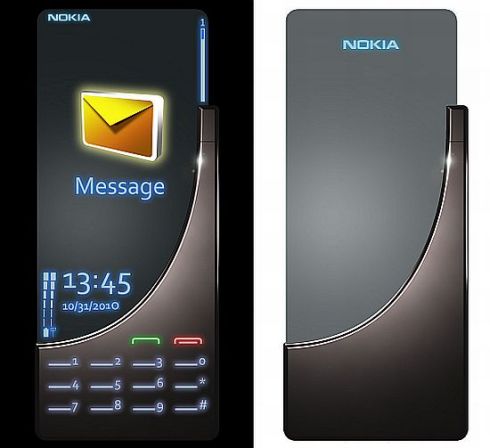
Nokia 2030 Cellphone Features an Illuminated Touch Keypad

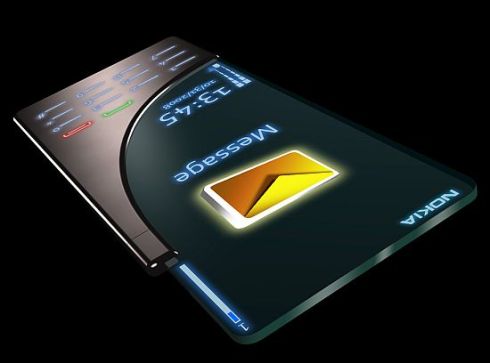
Here’s the Nokia cellphone concept of 2030, in case you wanted a taste of the future… Created by Jim Chan, the Nokia 2030 features a scratch-resistant finished body, plus a full color display and an illuminated touch keypad.
Nokia 2030 Cellphone Features an Illuminated Touch Keypad
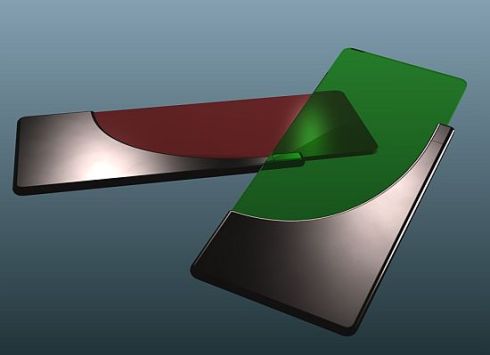
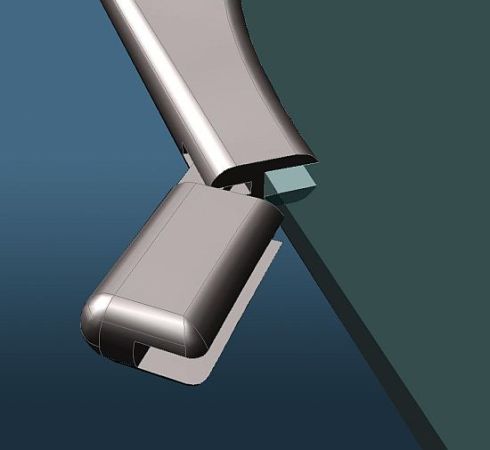
Fast messaging is the purpose of this unit and we learn that the phone measures 2 x 4.75 x 0.25 inches and attaches colored films at the rear, to change its color. Polished titanium is the choice of metal for the case area that protects the screen. This handset looks like some sort of futuristic keycard that grants access to a high tech facility and we bet it’ll have e-wallet features and a transparent UI.
Nokia 2030 Cellphone Features an Illuminated Touch Keypad

Nokia ClearBlack Display Explanation Video

What I have here is an explanation video covering what Nokia’s new ClearBlack displays are all about in case you are somewhat confused at what the new displays on the Nokia E7 and Nokia C6-01 are all about.
The Nokia ClearBlack Display explanation video comes our way courtesy of Mark Guim over at The Nokia Blog and by way of the Nokia YouTube account, and lasts a minute and a half of marketing the ClearBlack display.
Apparently ClearBlack ensures your Nokia smartphone has blacker blacks, brighter colours, whiter whites, is completely visible indoors and outdoors on bright and sunny days, and also has zero reflection, although they are somewhat more technical about it.
Anyway rather than me try to explain Nokia’s ClearBlack it is much simpler for you to hear it from Nokia themselves, so head on down, mash that play button and check out CleakBlack on Nokia…enjoy.